


Duo Mobile
4.26.26K Reviews
App Specs
- Version
- 4.120.0
- Updated On
- License
- Free
- Downloads
- 50,000,000+
- Developer
- Cisco Systems, Inc.
- Categories
- Business
- Platform
- Android, iOS
Screenshots
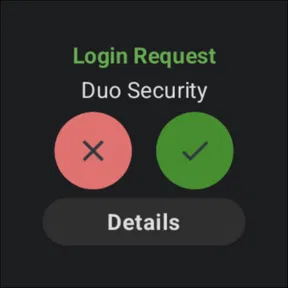
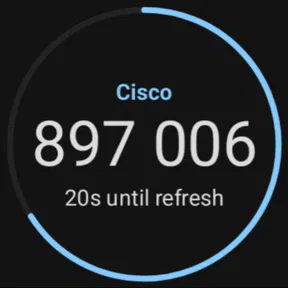
 Analysis by AppCompare
I think Duo Mobile makes the most sense when you treat two-factor authentication as part of a routine, rather than something to deal with only after a security scare. A password is one piece of the login; the second check is another. For accounts that support Duo, the app puts that check on your phone, so approving a sign-in becomes a small, repeatable step instead of a separate chore.
Decide what belongs in your security routine
Before installing any authenticator, I’d make a short list of the accounts I actually need to protect: work access, email, financial services, and any account that could be used to reset the others. That order matters. Securing an email account, for example, can help protect the rest of your digital life because it is often involved in password recovery. You don’t need to add every account in one sitting; starting with the important ones makes setup manageable and helps you check that each login works before moving on.
Duo Mobile is a business app from Cisco Systems, Inc., and its strongest fit is an organization or service that already uses Duo for sign-in approvals. It can also store codes for other compatible accounts, which gives it a place in an individual’s security routine too. The distinction is worth keeping in mind: an authenticator can generate a code for a compatible login, but it cannot make a service offer a particular sign-in method. I’d check the account’s own security settings before relying on any second-factor workflow.
Make setup deliberate, not rushed
When an account offers a QR code, adding it is straightforward: open the authenticator, scan the code, then complete the service’s test sign-in. My practical advice is to finish that test while the account’s setup page is still open. It is easy to scan a code and assume the job is done, only to discover later that the service expected a confirmation step. Give each account a recognizable name so you can identify the right entry when several work or personal logins are involved.
It also helps to distinguish between an approval notification and a generated passcode. An approval is convenient when your phone can receive the request; a passcode is useful when you need to enter a code manually or do not have an internet connection. That offline option can be a real advantage on a train, during travel, or in a building with poor reception. It does not remove the need to keep access to the phone, though, so I would not confuse “works without internet” with “works without the device.”
A small daily habit that pays off
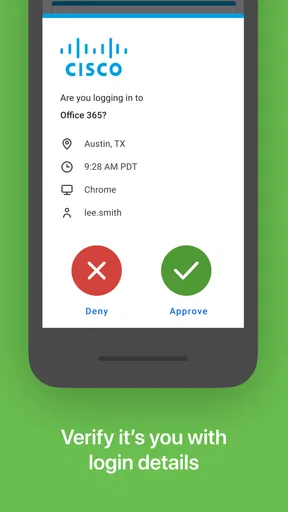
In an ordinary workday, I might sign in to a company service from my laptop, see an approval request on my phone, and confirm it before continuing. The interruption is brief, but it also gives me a moment to check whether I initiated the login. If a request appears when I am not trying to sign in, I would deny it and investigate rather than approve out of habit. That pause is part of the value: authentication should verify a login I recognize, not become a reflexive tap.
For a more sustainable workflow, keep the phone charged and close enough when you expect to use protected accounts, and review the account list now and then. Remove entries for services you no longer use if the app and account workflow allow it, and make sure you understand the organization’s recovery process before changing phones. This is especially useful for people who use Duo at work: an employer’s setup and support process may determine how a new device is enrolled. I would not wait until a busy morning or a deadline to find out how access is restored.
Worth Reading Before You Choose

Flipboard Shows What News Apps Must Do Beyond the Feed

Switching to Android Auto Means Rethinking Your Driving Routine

Google Calendar Makes a Crowded Week Easier to Manage

Ludo King Makes the Most of the Minutes Between Plans

Baby Panda World Brings Quick Play to Modern Phones, but Its Game Library Feels Busy

ESPN’s Live Game View Makes Following Close Games Easier
Keeping It Simple and Secure
The beauty of Duo Mobile lies in its simplicity. Once you download the app and pair it with your accounts, it’s all about two-factor authentication (2FA). You get a notification on your phone, and all you have to do is approve the login attempt. Easy, right? This extra layer of security ensures that even if someone gets hold of your password, they can’t access your account without your phone.
Setting Up
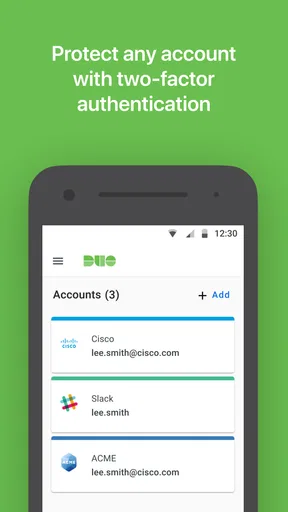
Getting started with Duo Mobile is a breeze. After downloading, you can add accounts by scanning QR codes. The app supports a range of services, from social media to business applications. I found the setup process to be intuitive, and it took me just a few minutes to have my main accounts secured.
Features That Stand Out
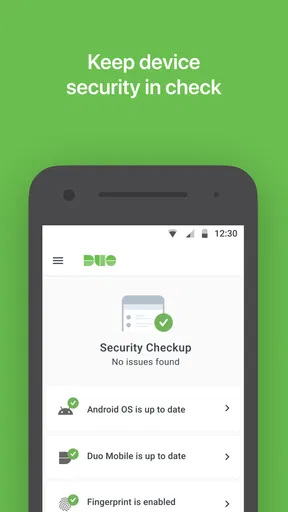
One of my favorite features is the ability to generate passcodes. This means you don’t always need an internet connection to authenticate a login. Going off the grid? No problem, you’re still covered. Also, the app supports biometric verification, so if you’re on a newer device, you can use your fingerprint or face recognition to approve logins. Security with convenience, what more could you ask for?
Why You’ll Love It
Having used Duo Mobile for a while now, I can confidently say it’s a game changer. The peace of mind it offers is invaluable. No more worrying about unauthorized access to accounts, and the app’s seamless integration with so many platforms is a huge plus. Plus, it doesn’t hurt that Duo Mobile is free, making it accessible to everyone.
A Few Things to Consider
While Duo Mobile is fantastic, it’s worth mentioning that you need to have your phone with you to approve logins. This might be a bit inconvenient if you’re prone to forgetting your phone or if it’s ever lost or stolen. But hey, that’s the nature of strong security systems. And trust me, this minor inconvenience is a small price to pay for the added security.
Overall, if you’re serious about protecting your online accounts, this app is a must-have. It’s straightforward, efficient, and quite frankly, makes you wonder how you ever lived without it. So go ahead, give Duo Mobile a try and step up your security game.
What happens when the phone is unavailable?
The phone requirement is the main practical weakness, and I’d plan for it before depending on the app for a critical workday. A dead battery, a misplaced device, or a replacement phone can turn a quick approval into a support problem. For organization-managed accounts, ask the administrator how device replacement and account recovery work; for personal services, check whether they offer recovery codes or another approved method and store those details somewhere separate from the phone. That backup is not a substitute for the authenticator, but it can keep a lost device from becoming a lockout.
I would also be careful when migrating to a new handset. Don’t erase or trade in the old one until the accounts you depend on are working with the new setup, unless your organization has given you a different process. Authentication arrangements vary by service, so a familiar app icon does not guarantee that every account has transferred in the same way. Testing the important logins one by one is less elegant than a one-tap move, but it is a much better time to catch a gap than when you need urgent access.
Choosing between an authenticator and other methods
Compared with relying on passwords alone, adding a second check is a meaningful improvement because a stolen or reused password is not the whole login. Compared with text-message codes, an authenticator can be more convenient when a service supports it and can avoid depending on a text arriving at that moment. Duo’s generated passcodes are especially handy where connectivity is unreliable. Still, no single method fits every account: some services require their own approval flow, and some organizations control which methods employees may use.
There is also a difference between a dedicated business login workflow and a general-purpose code generator. Duo Mobile can be a tidy place for compatible accounts, but if your employer requires its own enrollment or device policy, a personal preference cannot replace that requirement. Conversely, if you only want to store codes for a handful of unrelated personal services, another authenticator may suit you better if its account organization or transfer process matches your habits. I’d choose based on the services I actually sign in to, not on a broad claim that one authenticator is best for everyone.
Who will get the most from it?
I’d recommend it most readily to people whose workplace or school uses Duo, and to anyone who wants a simple second-factor step for services compatible with it. Cisco Systems, Inc. has developed the app for the business category, but its usefulness is not limited to office hours: protecting personal accounts can make sense wherever a service offers a supported setup. It is free, rated for Everyone, and has an average rating of 4.5 from around 85,000 ratings, with more than 10 million installs. Those figures suggest broad adoption, though they don’t tell you whether a particular website supports the authentication method you need.
The current version is 4.103.0, and the app requires operating system version 11 or later. That matters if you are considering installing it on an older phone: check compatibility before making it part of your only sign-in route. Its long-running presence, with a release date of May 3, 2011, also makes it a familiar option in business authentication, but the right choice still depends on your account providers and your organization’s rules.
I’d be less enthusiastic about recommending it to someone who rarely uses protected accounts, cannot reliably keep a phone available, or expects an authenticator to solve password hygiene on its own. It does not replace unique passwords, sensible recovery planning, or paying attention to unexpected approval requests. If a service offers a security key or another method that better fits your situation, that may be a stronger choice for that account. The best setup is the one you can use consistently without approving logins blindly.
My final take
Having used Duo Mobile for a while now, I can confidently say it’s a game changer. The peace of mind it offers is invaluable. No more worrying about unauthorized access to accounts, and the app’s seamless integration with so many platforms is a huge plus. Plus, it doesn’t hurt that Duo Mobile is free, making it accessible to everyone.
Overall, if you’re serious about protecting your online accounts, this app is a must-have. It’s straightforward, efficient, and quite frankly, makes you wonder how you ever lived without it. So go ahead, give Duo Mobile a try and step up your security game.
Pros
- Simple and intuitive user interface.
- Fast and reliable two-factor authentication.
- Supports multiple accounts easily.
- Highly secure encryption protocols.
- Push notifications are quick and efficient.
Cons
- Limited offline functionality.
- Occasional sync issues reported.
- No desktop version available.
- Lacks advanced customization options.
- Some features require premium upgrade.
FAQs for Duo Mobile
What is Duo Mobile and what does it do?
Duo Mobile is a security app designed to provide two-factor authentication (2FA) to protect your accounts and data. It generates time-based, one-time passcodes and sends push notifications to verify your identity when you log in to websites or applications. This added layer of security helps prevent unauthorized access.
How do I set up Duo Mobile on my device?
To set up Duo Mobile, download the app from the App Store or Google Play. Open the app and scan the QR code provided by the service you wish to secure. Follow the instructions to complete the setup. Ensure you have a stable internet connection during this process for smooth configuration.
Is Duo Mobile compatible with all devices and platforms?
Duo Mobile is compatible with most Android and iOS devices. It supports a wide range of services and platforms, including websites, VPNs, and corporate applications. However, always check the specific compatibility requirements for the service you intend to use it with, as some older devices may not support the latest app features.
What should I do if I lose my phone with Duo Mobile installed?
If you lose your phone with Duo Mobile installed, immediately contact your service provider's support to disable 2FA until you can secure your account. You should also change your account passwords and enable 2FA on a new device as soon as possible. Duo Mobile allows you to back up your accounts for easy restoration.
Are there any costs associated with using Duo Mobile?
Duo Mobile is free to download and use for individual accounts. However, some organizations may require a paid subscription for additional security features and enterprise-level support. Check with your organization or the service provider for details about any associated costs or subscription requirements.


